

The hard part of a lower third is not the design. It is getting a clean file out with a see through background. We built eight animated styles that you render with your own name and title, free, and we tested the exports so the black box does not happen to you.
If your first export had a black box around it, you are in good company. One After Effects user saw the background come out all black and cover the video in Final Cut. This guide fixes that first, then covers long names, style, timing and safe margins.
The black box problem is an export problem, and ProRes 4444 fixes most of it
A normal video file has no transparent pixels. A lower third needs them, so the export must carry an alpha channel. One Premiere thread gives the short answer: choose the QuickTime format and the preset Apple ProRes 4444 with alpha.
Plain RGB plus alpha is not the same as a clean export. One user set up that export and then asked about the file size. Another hit the black background in Final Cut. ProRes 4444 is the format the threads keep pointing to, and another editor asks if everyone uses it for graphics with alpha.
Resolve users report the same trap. One user exported with the alpha channel enabled and still had trouble. Another says ProRes 4444 works when you follow the rules, apart from a glitch where the Export Alpha option sometimes does not show up. If you see it, restart and check again before you change the codec.
If the edges look dark or light, it is an alpha setting. One editor brought a ProRes 4444 file into Premiere and went looking for the alpha pre-multiplication setting. Switch the clip's alpha between straight and premultiplied and compare. Usually one of the two looks clean.
WebM is tiny, but not everywhere. One user says it works fine in OBS with the alpha channel. When a WebM lost its transparency, one reply says to turn on the alpha channel option in the encoder. A motion designer warns that iOS Safari does not fully play WebM alpha. Use it for streams, and use ProRes for editing.
| Where you will use it | Use this file | Why |
|---|---|---|
| Premiere Pro, DaVinci Resolve, Final Cut Pro | ProRes 4444 .mov | The format editors point to for a graphic with transparency |
| OBS and live streams | WebM VP9 .webm | Tiny, and it keeps transparency in OBS |
| A web page overlay | WebM VP9 .webm | Not every browser plays WebM transparency, iOS Safari included |
| A client who needs a file they can reuse | ProRes 4444 .mov | The format the threads point to for graphics with alpha |
Here is what we tested. We rendered a 5.2 second, 1080p, 30 fps lower third as ProRes 4444 and as WebM. Both read back with an alpha channel, and both showed the background through when we laid them over a gradient. The ProRes file is 11.8 MB and the WebM is 0.1 MB. We did not open them in every editor, so check one in yours first.
Long names and long titles break most templates, so ours resize
Real titles are long. One editor is designing for someone whose job title is 20 words and can only shrink the text so far before it looks bad. Our test title is 19 words and a hyphenated name, and the pack handles it.
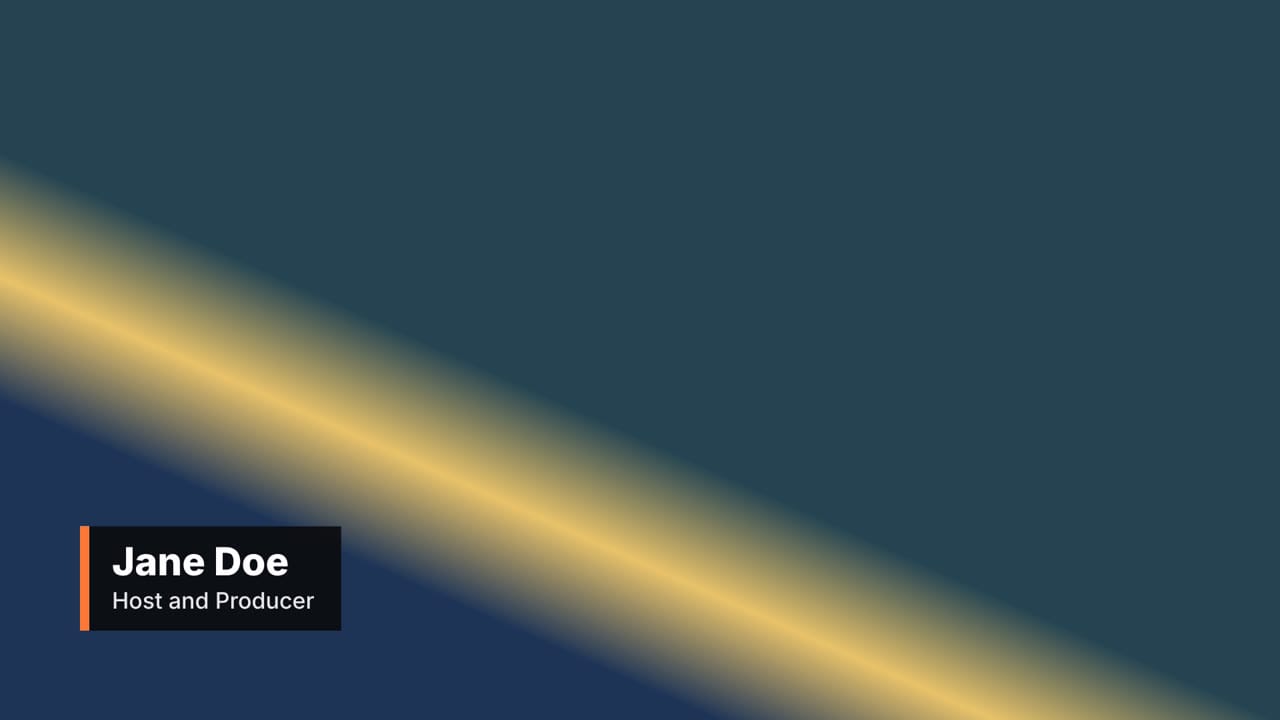 Normal nameJane Doe and Host and Producer in the clean bar style.
 Very long name and a 19 word titleThe box grows and the fonts shrink only when they must.
 Right side, text not mirroredThe layout mirrors. The words never do.
 Right side with the long textLong text on the right still stays inside the frame.
Same style, four inputs. Real renders over a made up background. Vimerse diagram.
The box grows to the text, so there is nothing to resize by hand. In After Effects, auto-sizing a bar to its text takes expressions that read the text width. A web page does it for free. If a line still does not fit, the font shrinks until it does: one line for the name, two for the title.
Shorten the title before you trust the shrink. Two lines of small type is a last resort. If the title needs 19 words, ask whether the viewer needs all of them on screen, or just the first few.
A spreadsheet beats re-editing. One After Effects user wants lower thirds that react to the length of the name, driven from a spreadsheet. Our tool reads a name,title CSV and makes one video per row. Each one took about 43 seconds on our test machine, so 20 people is about 15 minutes of waiting.
Pick the style by the footage, not by taste
Most people want simple, not flashy. One Premiere user asks for a smooth animation, "not the crazy ones from envato". Another is looking for subtle lower thirds for historical documentaries with a bare minimum of animation.
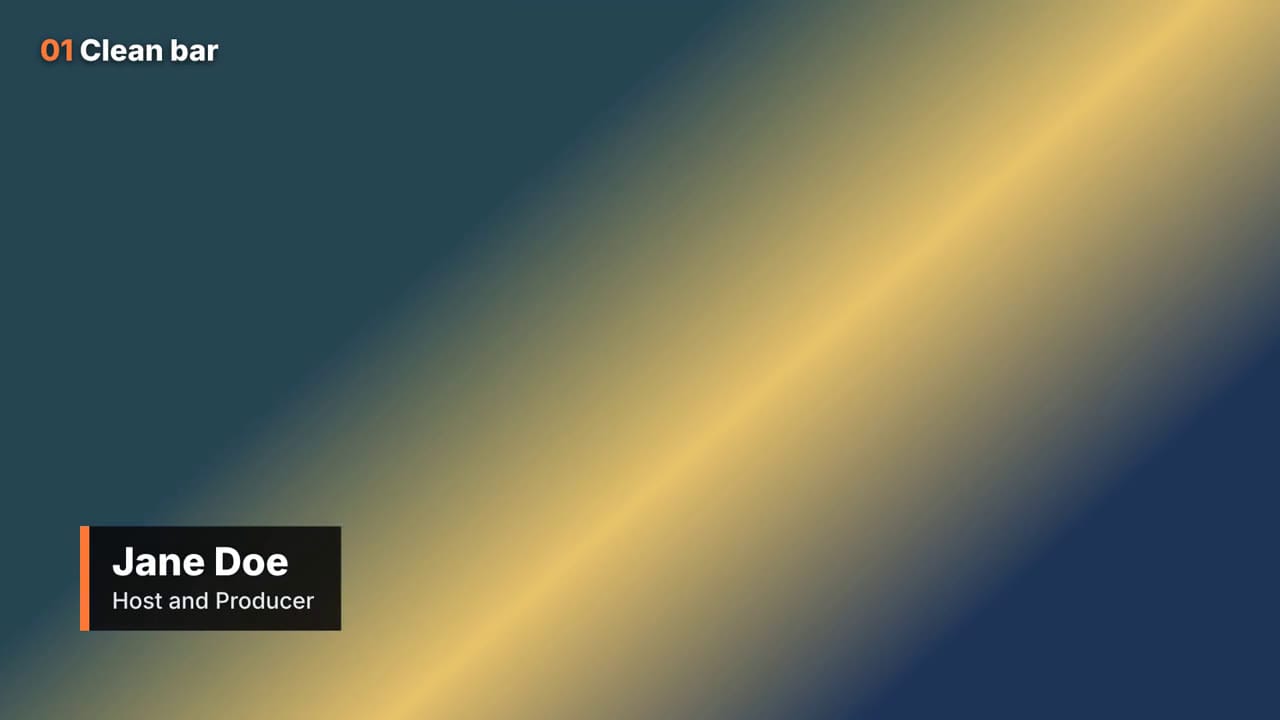 01 Clean barJane Doe, Host and Producer. Interviews and talking heads on busy footage.
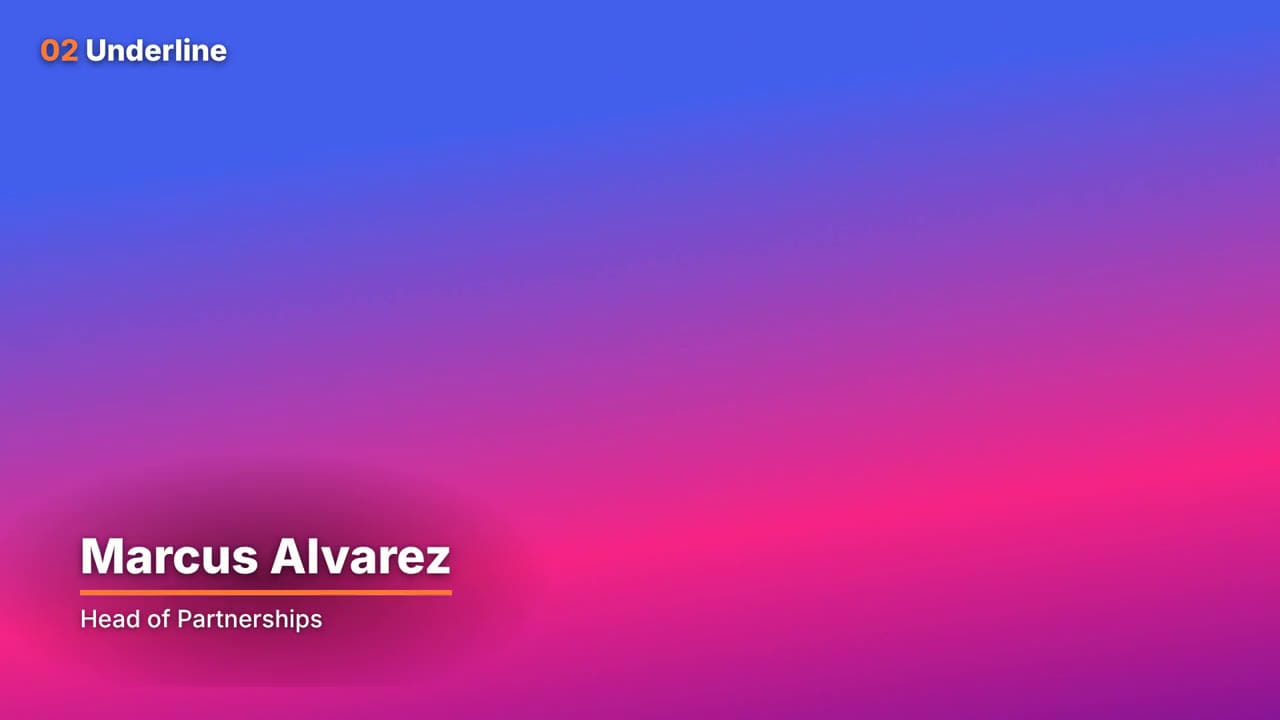 02 UnderlineMarcus Alvarez, Head of Partnerships. Calm documentary shots, text only.
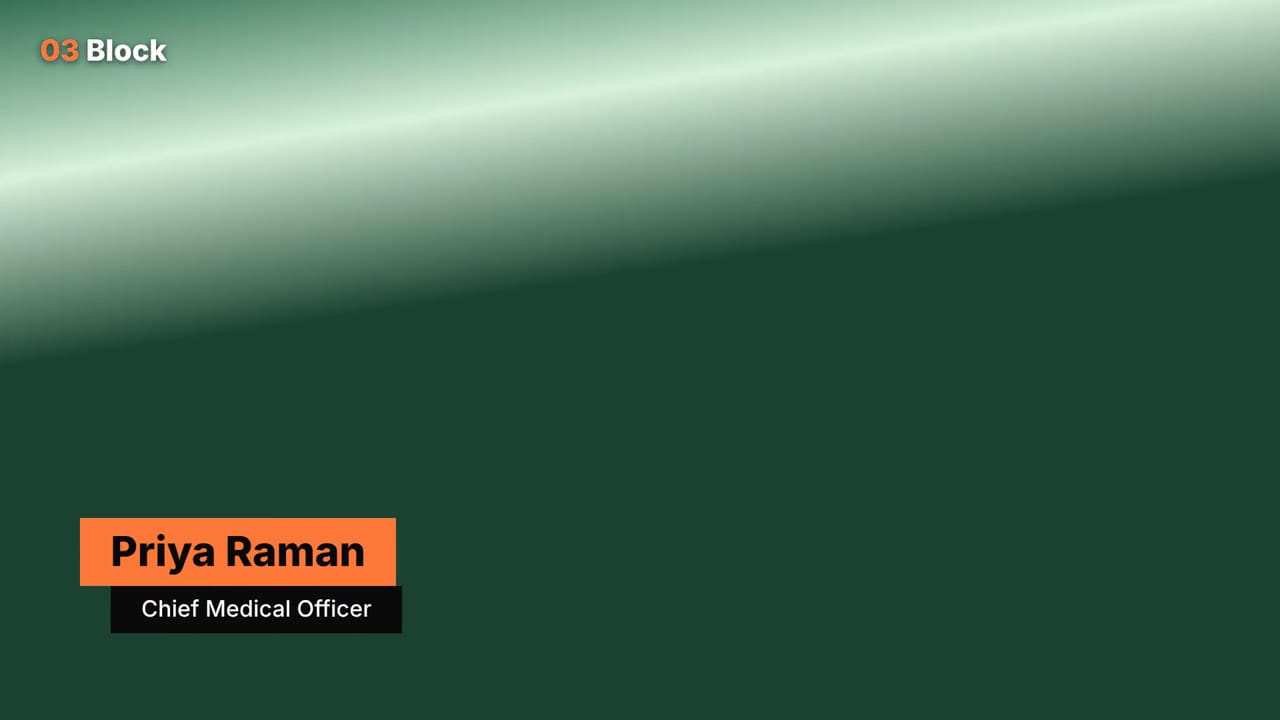 03 BlockPriya Raman, Chief Medical Officer. Events, sports and bold brand colors.
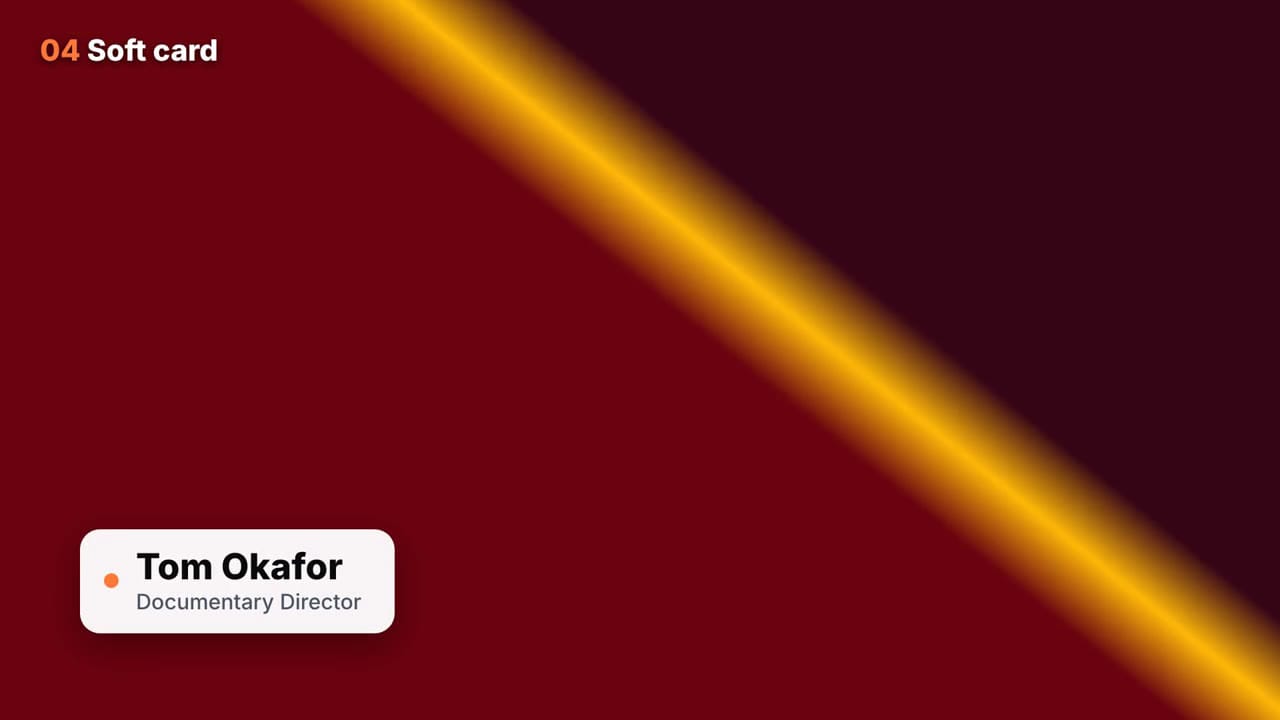 04 Soft cardTom Okafor, Documentary Director. Light, friendly footage and lifestyle.
 05 Slant tagSofia Lindqvist, Lead Editor. News style and fast cuts.
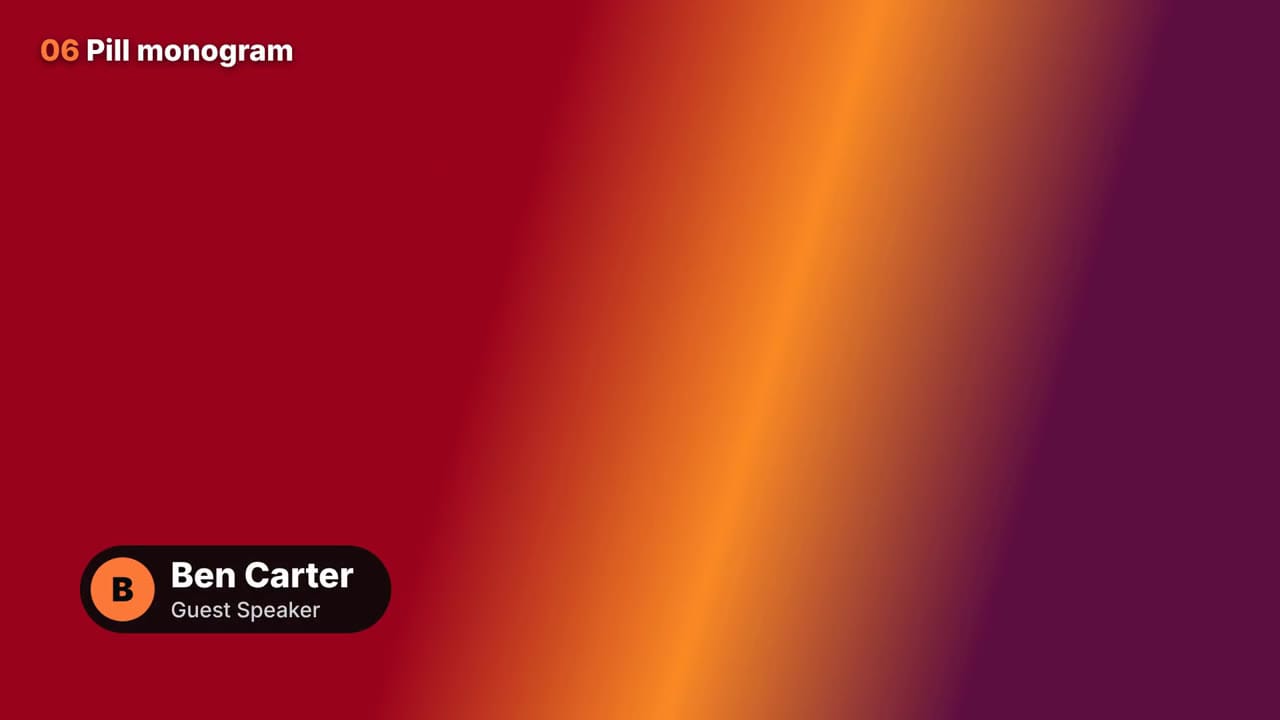 06 Pill monogramBen Carter, Guest Speaker. Webinars and guests, social style.
 07 Thin lineDr. Amara Nwosu, Marine Biologist. Cinematic, historical documentary.
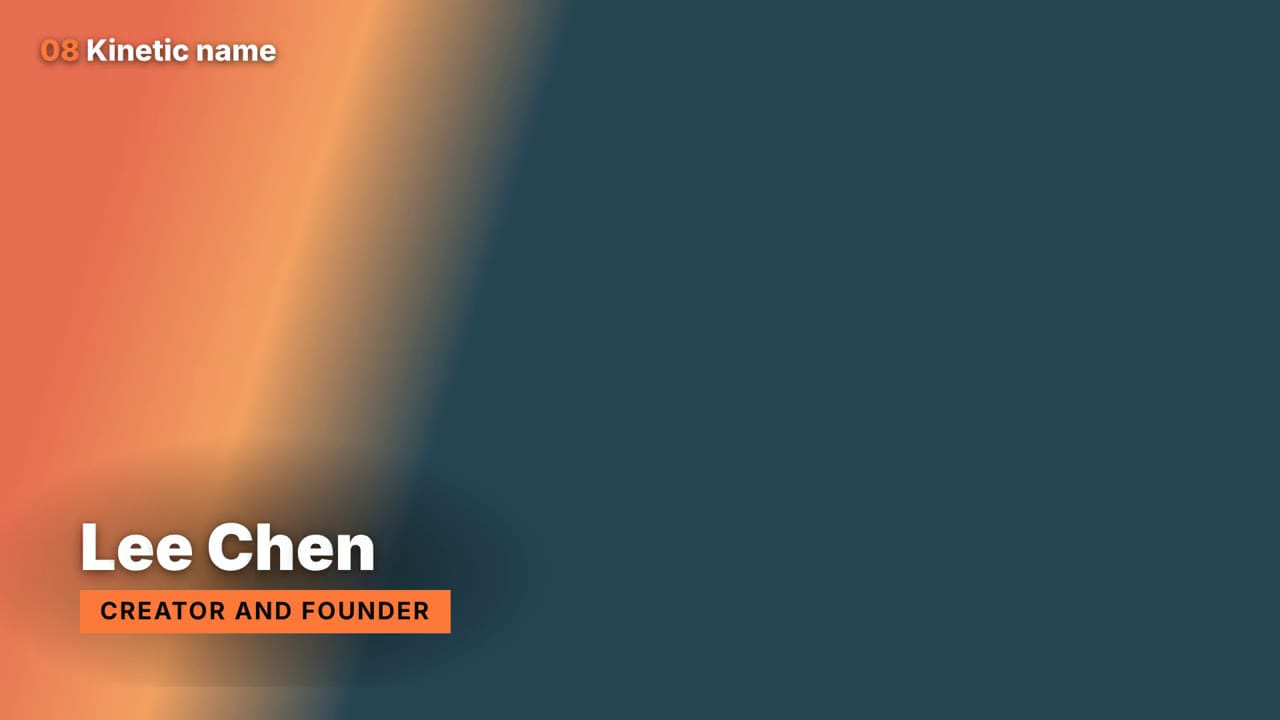 08 Kinetic nameLee Chen, Creator and Founder. Intros and big name moments.
The eight styles with the footage each one suits. Real renders over made up backgrounds. Vimerse diagram.
| If your footage is | Start with | Watch out for |
|---|---|---|
| Interviews and talking heads | 01 Clean bar | The bar covers a lot of frame on tight shots |
| Calm documentary shots | 02 Underline or 07 Thin line | Text only, so keep the soft dark glow on over bright shots |
| Events and sports | 03 Block or 05 Slant tag | Loud colors that fight a busy scene |
| Creators and lifestyle | 04 Soft card or 06 Pill monogram | The light card can glare on dark footage |
| Intros and shorts | 08 Kinetic name | Big type, so use it once, not on every speaker |
A blurred backing is the usual mistake. One videographer says a templated color bar with a blur behind it "looks terrible on about everything except flat white". We tested our text-only styles over a very bright band and they were hard to read. So they come with a soft dark glow behind the text, which you can turn off.
Plan for the smallest screen. There is no right font size, and one editor puts it this way: plan for the smallest screen your content may be viewed on. The name line in our clean bar style is 58 pixels on a 1920 wide frame. Check yours on a phone before you ship.
Clients knock back name-straps. One editor says the client keeps rejecting their name-straps. Save time by showing the client two styles on their own footage, in their own colors. The accent option changes the color in one line.
Show it only while the person is on screen, and keep it short
Match the person, not the clock. One editor's rule: "the lower third should only show while they are on screen". If their clip is short, the lower third is short. Others ask the same questions about when it should appear and how long to keep it up in a live show.
Our default is 0.7 seconds in, 4 seconds hold, 0.5 seconds out. That is our choice, not a rule from the threads. Change the hold with one option. Show it the first time a person speaks, and not again.
Someone has to place it well. One thread on who owns lower thirds says they are placed carefully in the frame based on framing and contrast. Use the side option so the graphic sits on the open side of the speaker.
Keep it inside the safe area
Safe margins are still worth it. One editor says it is still a good idea to keep titles inside the title safe area after seeing lower thirds cut off. Another thread gives the usual numbers for horizontal video, 90 percent for action safe and 80 percent for title safe, and asks what the vertical equivalent is.
Our default sits inside the 90 percent line. It is 120 pixels from the side and 130 from the bottom on a 1920 by 1080 frame. That is just outside the 80 percent line on the left. For 80 percent, set the side margin to 192 pixels.
Vertical video breaks the old rules. One editor says that for 9:16 video, keeping everything title safe is pretty impossible. Our tool can render a vertical file with the size option, like 1080x1920. We tested it, and the lower third lands in the lower left corner, inside the margins. Check it in your app before you ship.
Rendered video is not a MOGRT, and here is the honest trade
A MOGRT keeps the text editable, and ours does not. A MOGRT is an Adobe template file that you type new text into. Premiere users build them in the Essential Graphics panel, and one thread says to learn that panel to speed up lower thirds. You need Adobe tools to make one. Our files are rendered video, so a new name means a new render.
Resolve and Final Cut have their own versions. In Resolve, one user suggests saving a lower third as a macro. In Final Cut, someone asks how to change the length of a custom lower third. If you do a lot of edits for one client, building a native template may be worth it.
Flipping to the other side should not flip the text. One Premiere user has a lower third that comes out on the left by default, and needs one on the right for a second speaker. Our side option mirrors the layout and never the text.
The trade is simple. Rendered files work in any editor and are free to batch. Native templates are editable in one editor. If you edit a few lower thirds a week, render them. If you edit fifty, build a template.
Make your own style with Claude Code in three steps
Claude Code is good at this kind of work. A Final Cut editor says a lower third arrives already in the client's typeface and the right blue because Claude Code reads a saved brand file. One user built a library of lower thirds by pointing Claude at reference folders.
Step 1: give it a shared core and one template. Our pack has a small core file with the timing, placement and text fitting. A new style only needs its own look and its own animation.
Step 2: ask for three test frames. Ask for a normal name, a very long name with a long title, and the right side. We used exactly those and found the bright footage problem in minutes.
Step 3: render and read the file back. Check that the output has an alpha channel, then lay it over a gradient and look at the edges. Our guide to making a motion graphic with Claude Code has the full recipe.
You need three free tools. Node, Playwright to draw the frames, and ffmpeg to join them. The readme in the zip has the steps.
What to do about each thing you see
| What you see | What it means | What to do |
|---|---|---|
| A black box around the graphic | The file has no alpha, or your editor did not read it | Export ProRes 4444 with alpha, then check the clip's alpha setting |
| A dark or light fringe on soft edges | Straight and premultiplied alpha do not match | Switch how your editor reads the alpha and compare |
| Text cut off at the edge | It sits outside the safe area | Raise the side and bottom margins |
| Tiny text on a long title | The title is too long for two lines | Shorten the title before you shrink the font |
| Hard to read on bright shots | Text only, with nothing behind it | Keep the soft glow on, or pick a bar or card style |
| A huge file | ProRes 4444 keeps every frame in full | Use ProRes for editing and WebM for streaming |
Things to stop doing
- Exporting a plain MP4 and hoping for transparency.
- Keeping a lower third on screen for the whole interview.
- Cramming a 19 word title into small type instead of shortening it.
- Picking a style from taste before you test it on your footage.
- Re-editing the project for every new name. Use the spreadsheet batch.
A 30 minute routine for your first lower third
- Minutes 0 to 10: install the three tools and run the one line example.
- Minutes 10 to 15: lay the .mov on a clip and check the edges for fringes.
- Minutes 15 to 25: put your names in the CSV and render them in one go.
- Minutes 25 to 30: test the safe margins and the text size on your phone.
The short version
- Export with an alpha channel. ProRes 4444 for editors, WebM for streams.
- Our ProRes file was 11.8 MB and the WebM was 0.1 MB for the same lower third.
- Long names and titles shrink to fit, and a spreadsheet batch makes a file per person.
- Pick the style by your footage. Text only styles need a dark glow on bright shots.
- Show it while the person is on screen. Our default is 0.7 s in, 4 s hold, 0.5 s out.
- Stay inside the 90 percent safe area, and use 192 px margins for 80 percent.
- Rendered files are not MOGRTs, so a new name means a new render.
Read next
- How to Make a Motion Graphic With Claude Code, for the pipeline behind these templates.
- GPT vs Claude for Motion Graphics: Who Actually Wins?, for the head to head test of both models.
- What an AI Video Production Agency Actually Does, for the work that code alone will not cover.
If you would rather hand the whole edit to a team, including the lower thirds, start at our homepage.
Last reviewed 21 October 2026. The renders, the file sizes, the 43 second render time and the transparency check are from a test run we did for this guide. We read the files back with ffmpeg and did not open them in every editor. Every claim about what other people think links to the public forum thread it came from.
First video free · up to 4 editing hours
If you would rather hand the whole edit to a team, including the lower thirds, start at our homepage .
15-min call. First cut in 2 days. No card needed.